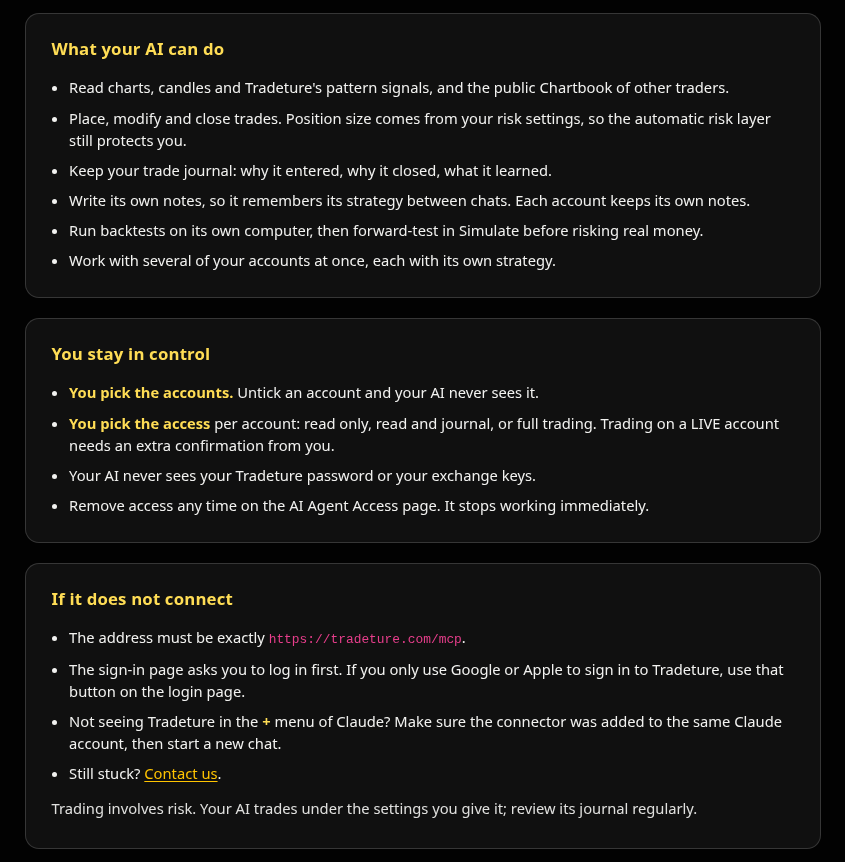
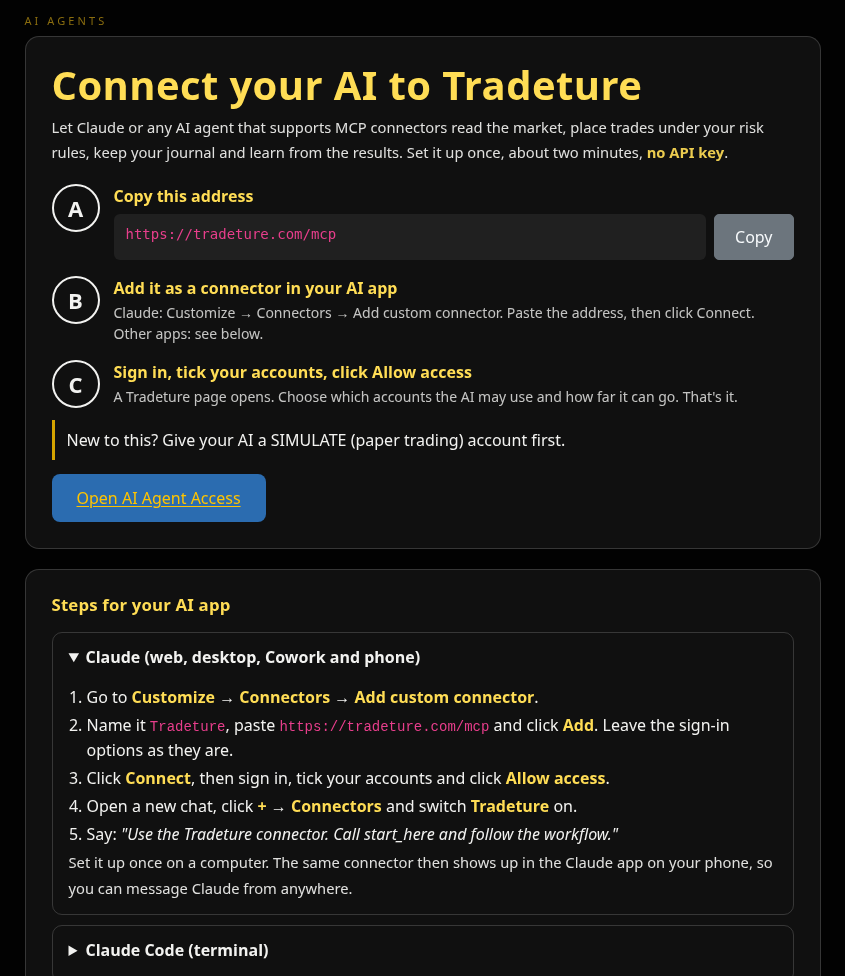
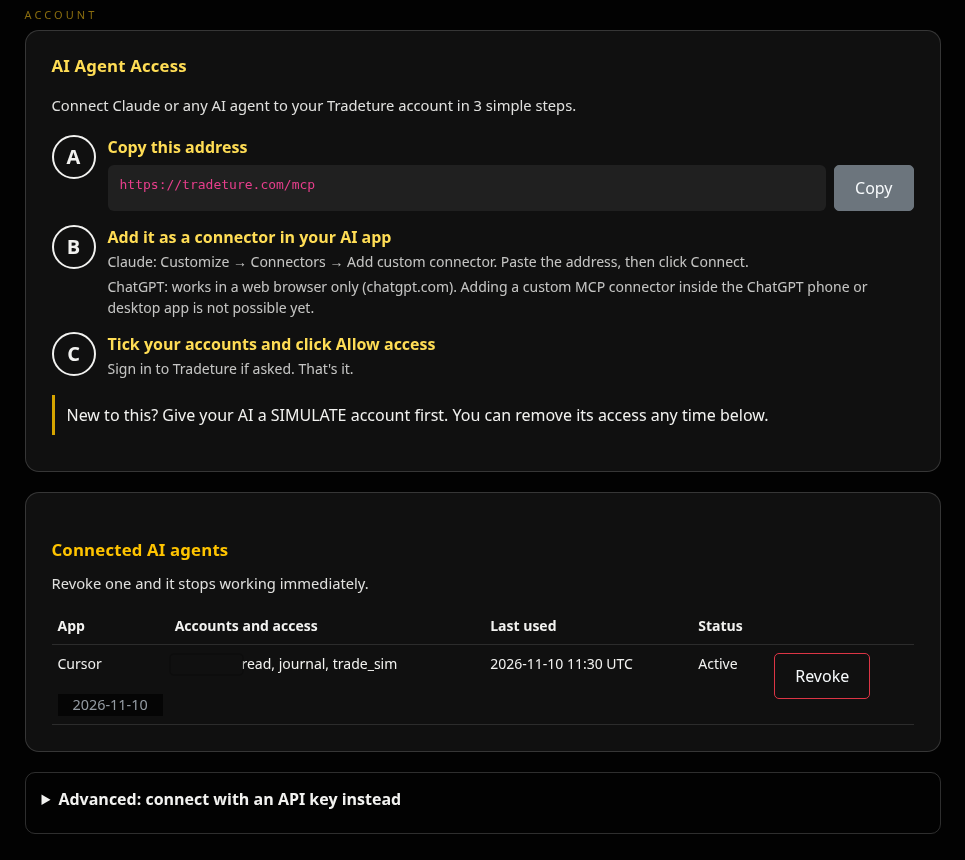
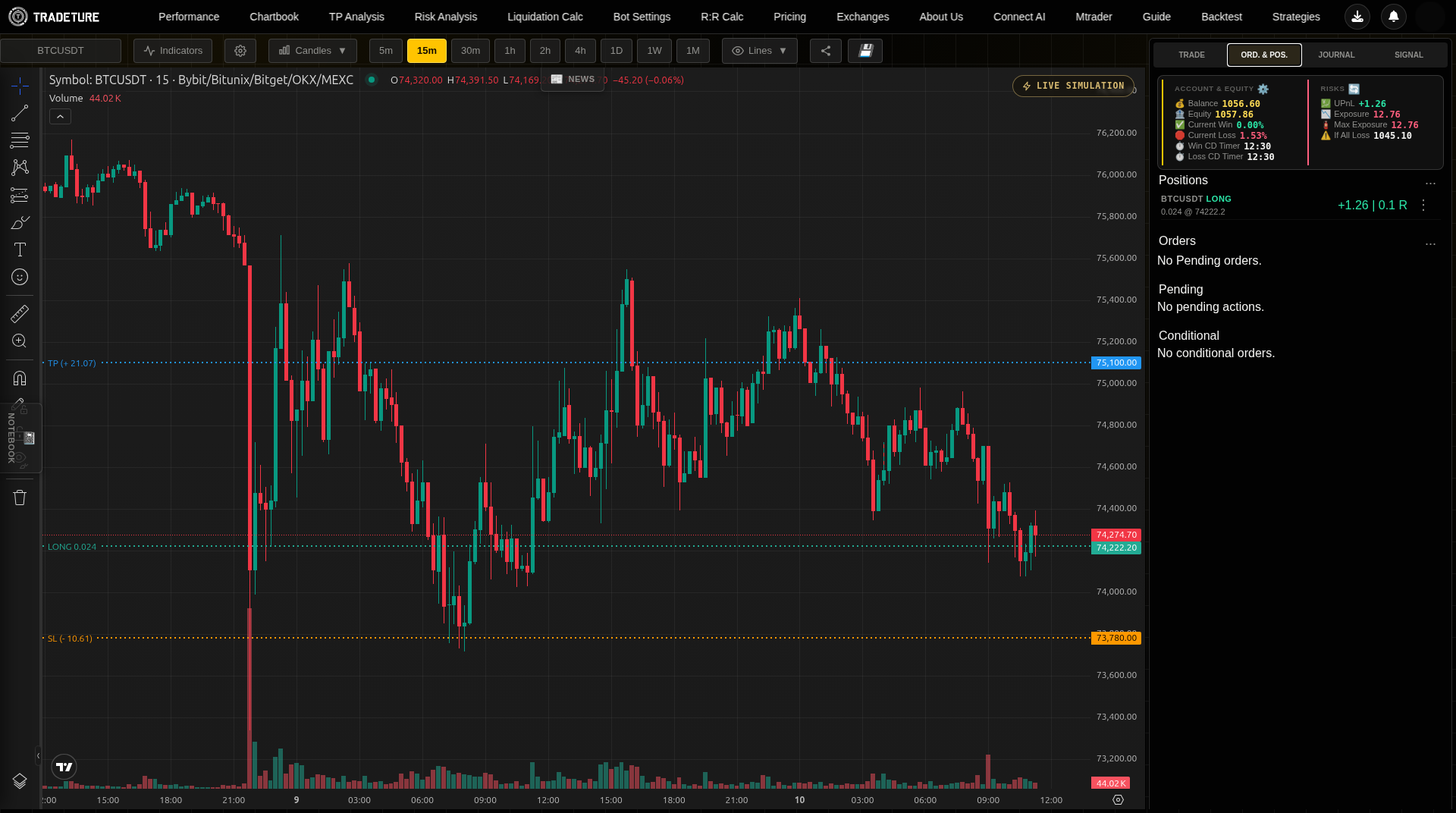
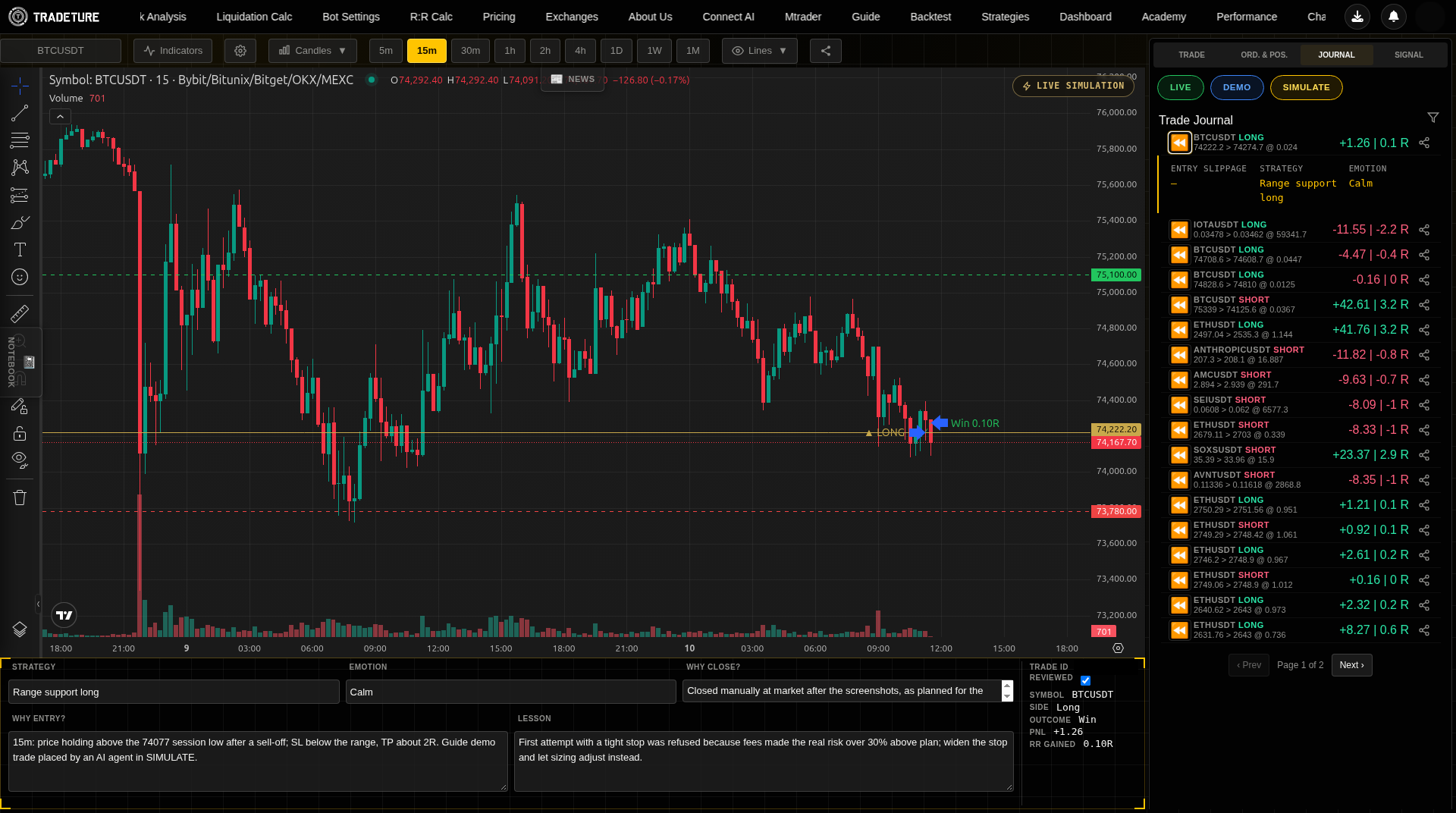
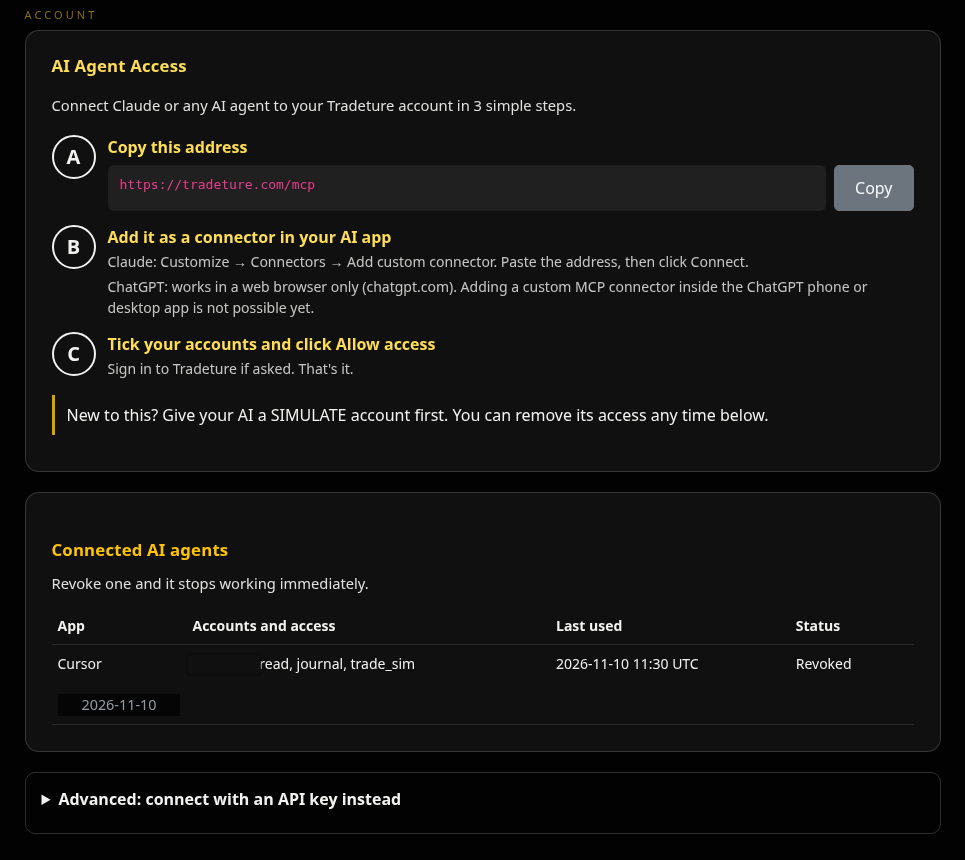
The Claude and ChatGPT steps below are taken from the Connect AI page. This walkthrough connected through Cursor, not through Claude or ChatGPT.
Claude. The site's steps are:
- Go to Customize → Connectors → Add custom connector.
- Name it Tradeture, paste https://tradeture.com/mcp and click Add. Leave the sign-in options as they are.
- Click Connect, then sign in, tick your accounts and click Allow access.
- Open a new chat, click + → Connectors and switch Tradeture on.
- Say: "Use the Tradeture connector. Call start_here and follow the workflow."
The Connect AI page says: "Set it up once on a computer. The same connector then shows up in the Claude app on your phone, so you can message Claude from anywhere."
Claude Code. Run this command, then run /mcp, pick tradeture and choose authenticate:
claude mcp add --transport http tradeture https://tradeture.com/mcp
Cursor, VS Code and other MCP apps. Add a remote MCP server with this address. When the app offers to sign in, approve it in the browser. This walkthrough used Cursor with that setup:
{
  "mcpServers": {
    "tradeture": {
      "url": "https://tradeture.com/mcp"
    }
  }
}
ChatGPT. The Connect AI page says: "you can connect Tradeture only from a web browser (chatgpt.com). Adding a custom MCP connection inside the ChatGPT app is not possible yet." It also says: "Any assistant that lets you add a custom MCP connector by web address can use Tradeture: paste https://tradeture.com/mcp and follow its sign-in prompt. Which assistants and plans offer custom connectors is decided by each provider and changes often." See Connect AI for the current site instructions.
Team plans. An organization owner adds the connector once, then each member clicks Connect and signs in to their own Tradeture account.