Bitget API Setup Instructions
Follow these steps to create and configure your Bitget API key, then link it securely to your Tradeture account.
Log In to Your Bitget Account
Go to Bitget and log in using your credentials.
Navigate to API Management
Click your profile icon and select API Keys for desktop users. On mobile, open the menu on the upper left and search for “API” instead.
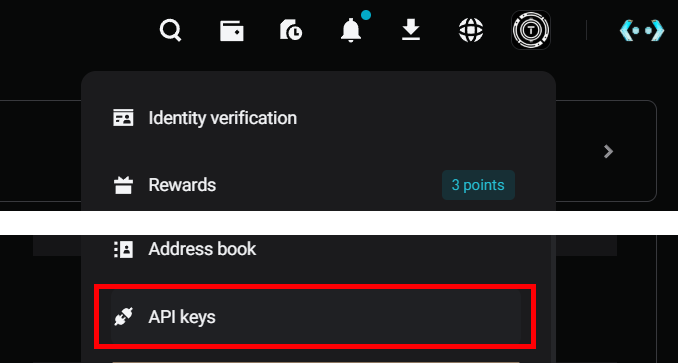
Click Create API Key and choose System Generated Keys.
Give it a name.
Set a Passphrase.
Set Permission to Read-write
Tick Futures Orders and Holdings only.
Copy Tradeture's server IP on step 4 and Paste it on Bind IP Address Box at the bottom. Recommended
click Next.
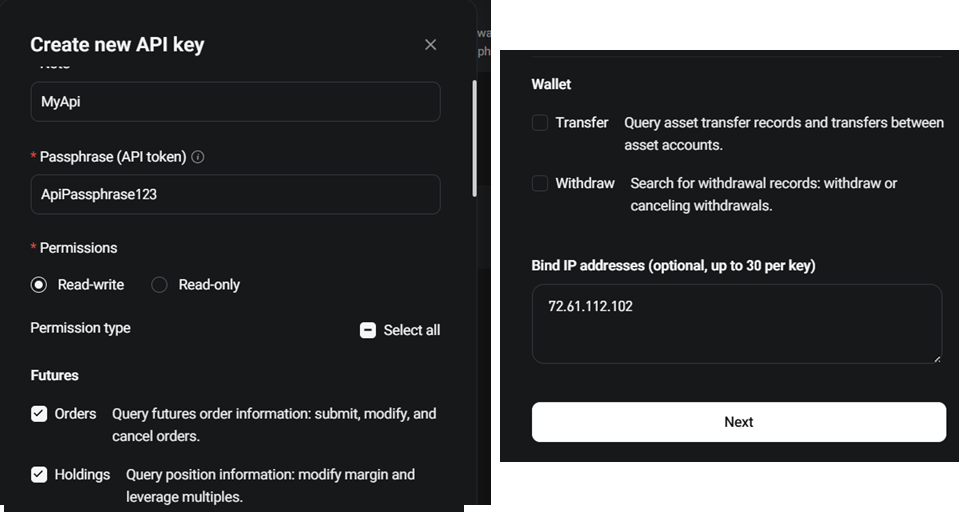
- ✓ Futures : Orders and Holdings Only
- ✕ DO NOT enable withdrawal permissions
Add Tradeture's Server IP for Fail-Safe Protection
I strongly recommend to Bind the created API key only for Tradeture's server address below.
This is your fail-safe. If a hacker ever obtains your API key from the Tradeture database, or your own keys got stolen, the key still cannot be used from anywhere else — it only works when the request comes from Tradeture's server.
Securing your own Account is still your responsibility. never share your username and password to anyone.
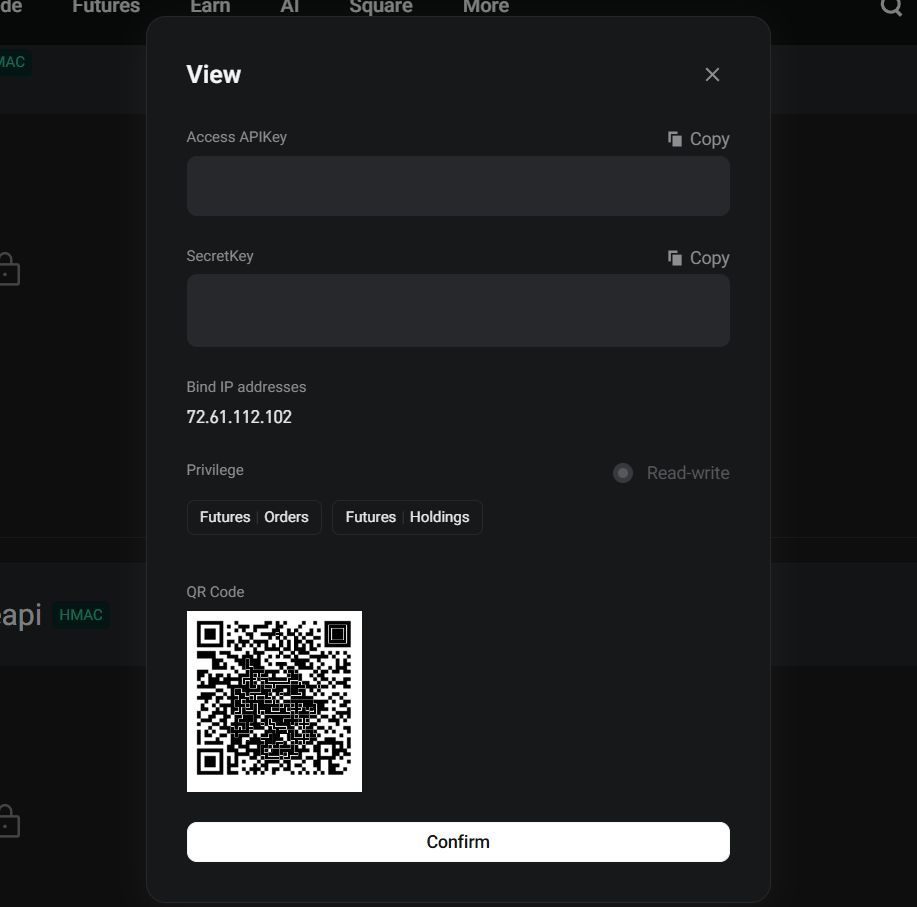
Copy API Key, Secret Key, and Passphrase
After generating the key, copy the API Key, Secret Key, and the Passphrase you set in Step 3. You'll need all three to connect to Tradeture.
Add API Key to Tradeture
Log in to your Tradeture account, go to API Settings, and paste your API Key, Secret Key, and Passphrase to establish the connection.
Go to API Settings →In the Rare Event Tradeture Is Compromised
Should the extremely rare event ever occur where Tradeture's own server is compromised, securing your account is simple: just delete the API key on your exchange. This immediately breaks the connection to the old key, and it can no longer be used by anyone — including from Tradeture's server.
Knowledge and preparedness are essential for maximum security.